




Your website includes a range of software, including the WordPress core, plugins, and your theme. Software isn’t something that gets installed on day one and never changes – it is updated frequently by WordPress or the plugin/theme developer.
Software gets updated because people discover security vulnerabilities and performance issues, which need to be patched. If you’re not staying up to date with software updates, your website could be at risk, but occasionally, installing an update causes a conflict with other software on your website. Worst case, an update could cause your website to crash.
In this guide, I’ll explain how to manage WordPress maintenance so you keep your website up to date while minimising and mitigating the risk of something breaking during updates. This is the process I recommend for business owners and website managers with a basic level of technical expertise who want to look after their own WordPress website.
Why Some WordPress Websites Keep Breaking
If you’ve ever updated a WordPress plugin only for the website to break, it is easy to blame the update. Sometimes the update is the problem, but it could also be the plugin itself, other software or even the hosting that is inherently unstable.

WordPress websites can be built in thousands of different ways. One website might use a lightweight theme and a small number of well-supported plugins. Another might use 30 plugins, several extensions for the page builder, an old theme and bits of custom code added by different developers over the years.
The quality and compatibility of the plugins on a WordPress website make a huge difference to how stable it is. Well-supported plugins from reputable developers are usually updated regularly, tested against current versions of WordPress and maintained when security issues are found.
That is why plugin selection matters just as much as plugin updates. A smaller, proven plugin stack that is known to work well together will usually be much easier to maintain than a website built from whatever plugins happened to solve each problem at the time.
This is why some WordPress websites can be updated every week for years with very few problems, while others seem to break every second time someone touches them.
What WordPress Maintenance Includes
For most small business websites, WordPress maintenance comes down to four main things: backups, updates, security and monitoring. Each one deals with a different type of risk, and together they cover the activities required to keep a WordPress site stable and recoverable.
You do not need to turn maintenance into a complicated technical process. The important thing is to have a repeatable routine and understand what each part is actually protecting you from.
1. Backups
Backups are your safety net. If an update breaks the website, or it gets infected with malware, or it just gets lost or corrupted, a good backup gives you a way to recover instead of rebuilding the site from scratch.
The first thing to check is whether your hosting provider already creates automatic backups. Good WordPress hosting will usually include daily backups, but you should confirm how often they run, how long they are retained and how easily they can be restored.
I would not rely on server backups alone. If the hosting account is cancelled, corrupted or compromised, you could lose the website and the backups at the same time. Keep at least one additional backup somewhere outside your hosting environment.
Retention matters as well. If malware has been sitting unnoticed on the website for two weeks, five days of backups isn’t going to help. Keep enough history that you can restore an older clean version if required.
You do not need to manually inspect every backup file, but you should confirm that backups are completing successfully and understand how you would restore one. A backup is only useful if you can actually recover the website from it.
My recommendation:
- Set up server-level daily automated backups through your hosting provider, and check that your retention history is at least 10 days
- Set up automated offsite backups to a separate location using a plugin like Updraft
2. Updates
WordPress, your theme, your plugins and the PHP version running underneath the website all need to be kept up to date. Updates fix performance issues, but more importantly, patch security vulnerabilities as they are discovered.
For a normal small business website, I recommend checking for WordPress, plugin and theme updates at least once a week. Security updates should be installed sooner where possible, particularly if they fix a known vulnerability.
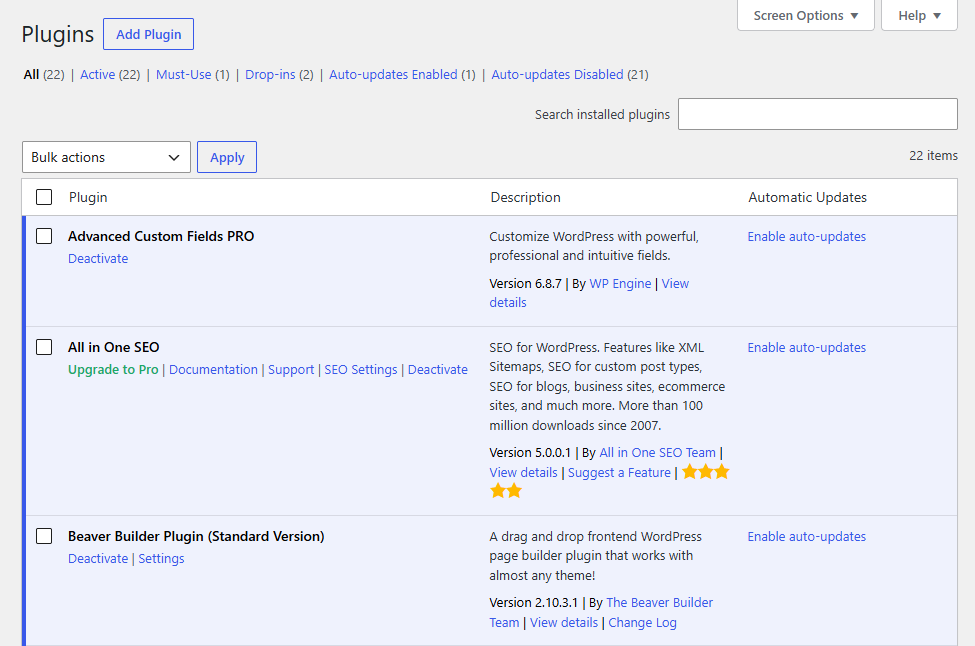
Before updating anything, make sure you have a recent backup! If the update breaks your website, you may need to revert to the backup if you can’t roll back the software. Once that’s done, perform the updates during a quieter period and check the website afterwards to make sure it still works and the layout and important functionality still work.
Most routine updates should not require a staging website if the site is built with plugins from reputable vendors that are known to be compatible. However, if you’ve got a website where even short downtime has serious consequences, such as e-commerce sites, then testing software updates on a staging website is probably worthwhile.
The important point is that updating is not just clicking “update all” and walking away. A good maintenance process includes making sure you can recover first, applying the updates, then confirming the website still works properly.
PHP is slightly different because it is normally updated through your hosting account rather than WordPress itself. Every year, a new PHP version is released, and it gets 4 years of support before it is no longer supported. If your WordPress website runs a version of PHP that is no longer supported, it’ll be much more vulnerable to security threats.
My recommendation:
- If you’re comfortable with your website stability, set WordPress plugins to auto-update or (better) use an automated update tool like ManageWP or Kinsta Automatic Updates to update all plugins at a specific time each week
- If you have concerns with website stability, manually update plugins at least weekly
- Use a staging version of the website to test plugin/theme updates if you cannot tolerate website downtime.
- Ensure you have automated daily backups set up so that you can restore the website if a plugin update causes an error
3. Security
Keeping WordPress updated is a big part of website security, but it is not the whole job. You also need to reduce the number of ways someone can gain access to the site in the first place.
Start with the basics: use strong, unique passwords and remove administrator accounts that are no longer required. If an old developer or staff member still has admin access years later, that account is another potential way into the website.
Two-factor authentication is possible with WordPress, but requires a plugin, which itself could become a security risk or break, leaving you locked out of your website. Until WordPress comes to the party and implements 2FA natively in the core, this is something that I’d recommend caution with.
Using a WordPress security plugin like WordFence gives you a base layer of security at the website level – it’ll help block attacks and detect malware. However, it’s better if your website host provides its own firewall and anti-malware, as this can prevent malicious traffic from even hitting the site and helps detect malware if WordFence is somehow disabled. This is one reason why we use Kinsta for our hosting, as they provide a server-level firewall and anti-malware.
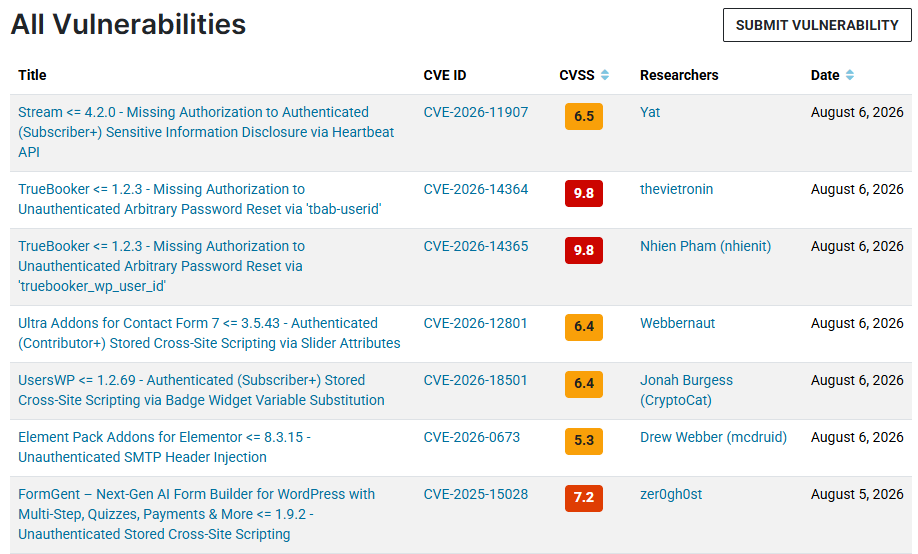
Plugin vulnerabilities are perhaps the single biggest source of security threats, since a known vulnerability can be used to gain access or compromise your website. For this reason, we review the WordFence plugin vulnerability database when assessing plugins to use for a website. A plugin with frequent, high-level security vulnerabilities indicates it could be inherently unsafe to use on a client’s website.
Finally, keep the website as simple as reasonably possible. Delete plugins and themes you no longer use, and be cautious about installing poorly supported software. Every piece of software on the site may eventually develop a vulnerability.
For most small business websites, good security is less about constantly fighting hackers and more about removing obvious weaknesses before they can be exploited.
My recommendation:
- Install and set up a security plugin like WordFence
- Confirm your hosting provider offers server-level security and malware protection, and that this is turned on
- Consider using Cloudflare in proxy mode (free)
- Check plugins/themes in the WordFence vulnerability database before installing
- Avoid giving anyone else admin access to your website, or sharing your WP credentials.
- Review security alerts from your security plugin promptly
- Update WordPress plugins and theme weekly, and sooner if a plugin vulnerability is identified by your security plugin.
4. Monitoring
Even a great website with carefully selected plugins and no custom code can break during an update. Sometimes fixing the problem is as simple as clearing the cache; other times you have to roll back a plugin or, worst case, revert to yesterday’s backup.
The important thing is finding out quickly, rather than discovering a week later that customers have been visiting a broken website.
Basic uptime monitoring checks whether the website is responding at all. This is useful, but it will not detect every problem. Uptime monitoring typically works by checking the response code from a website. There are many possible codes: a “200” response code means it’s live, “404” means not found, and “500” means server error. If a website doesn’t return a 200 response code, something could be wrong.
However, a website can return a “working” 200 response code while the layout is completely broken or parts of the website are unusable. For that reason, monitoring should also include some form of visual or manual check of your important pages.
For a small business website, that usually means the homepage, main service pages and any pages responsible for generating enquiries.
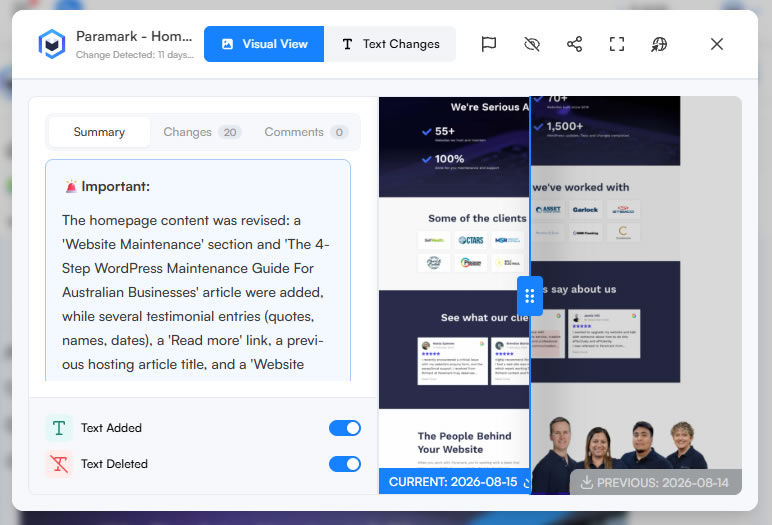
Performance is worth watching as well. If the website suddenly becomes much slower, starts using significantly more server resources or behaves differently after an update, that can be an early sign that something needs attention.
My recommendation:
- Set up uptime monitoring for your website – this is included by hosts like Kinsta as standard, or you can use a paid tool like UptimeRobot or Site24x7.
- Use a tool like VisualPing for visual scans to detect layout failures.
Testing the website after updates
Plugin, theme and WordPress updates can occasionally cause conflicts. A website might still load, but parts of the layout can break, forms can stop working, or you might see a WordPress error instead of the page you expected.
The risk is much lower if the website has been built with reliable, well-supported plugins and themes that are known to work well together. On a well-built site, routine updates should usually be uneventful.
If your website has a history of breaking after updates, you might need to be more cautious. At a minimum, check the main pages and important functionality after updating. For higher-risk changes, it may be worth testing the updates on a staging version of the website first.
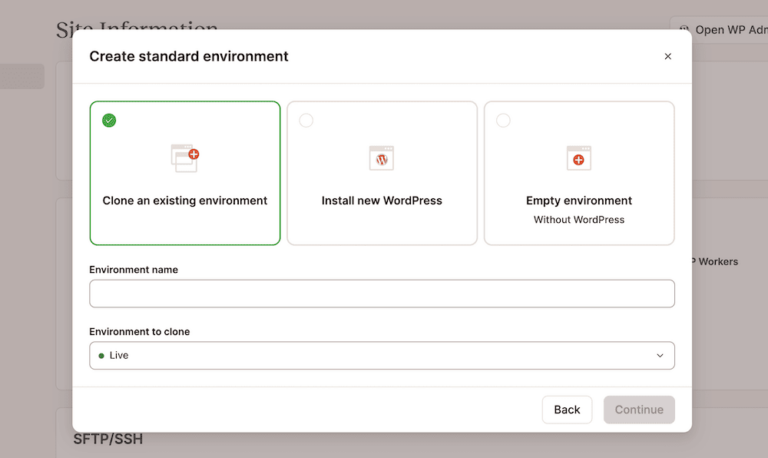
Staging is particularly useful for websites that cannot tolerate downtime, such as e-commerce sites or websites that process a large volume of enquiries or transactions. The first priority in those cases is still to use stable, compatible software, but staging gives you another layer of protection before changes reach the live website.
For a normal small business website with a good plugin stack, reliable daily backups and tolerance for a rare period of downtime, testing every routine update in staging is probably unnecessary. It adds time and complexity to what should otherwise be a fairly simple maintenance process.
This is also why monitoring matters. If you use automatic plugin updates, you may not be there when an update is installed. Uptime and visual monitoring can alert you if something goes wrong so the problem does not sit unnoticed.
What about repairs?
If your WordPress website is well built and properly maintained, repairs should be fairly rare. Most of the time, maintenance is preventative work designed to stop problems happening in the first place.
Some issues are simple enough to fix yourself. If an update causes a problem, clearing the cache solves many issues. If that doesn’t work, rolling back a plugin update could fix it, or, worst case, reverting the site to a recent working backup can get you back online while you work out what went wrong.
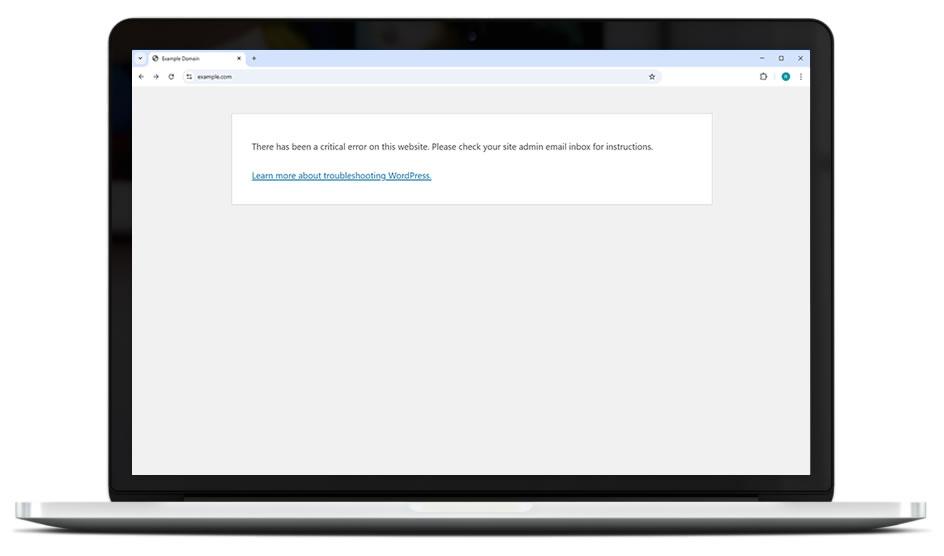
Your hosting provider may also be able to help, particularly if the problem is related to the server or hosting environment. Good WordPress hosts like Kinsta provide technical support, but if the problem has been caused by a WordPress configuration change, a plugin conflict, or something you have changed inside the site, it’s probably outside their remit.
If you can’t identify or fix the problem yourself, that is usually the point to bring in a developer.
At Paramark, we fix most issues that occur on the websites we maintain as part of our standard WordPress maintenance service, but for a DIY setup it is worth knowing who you can call before something goes wrong.
What about database maintenance?
WordPress stores most of the information that makes your website work in a database, including page content, settings, users and data created by plugins. Over time, you may hear recommendations to “clean”, “optimise” or otherwise maintain this database to improve performance.
If you’re wondering whether you should be maintaining the WordPress database yourself, the answer is probably no. Database work can be technical, and it is very easy to create a much bigger problem by deleting or changing the wrong thing.
There are situations where a database developer may be needed, particularly if the database has become corrupted, unusually large or is causing persistent performance problems. But for most small business websites, you are better off using a hosting provider that handles the underlying database environment for you.
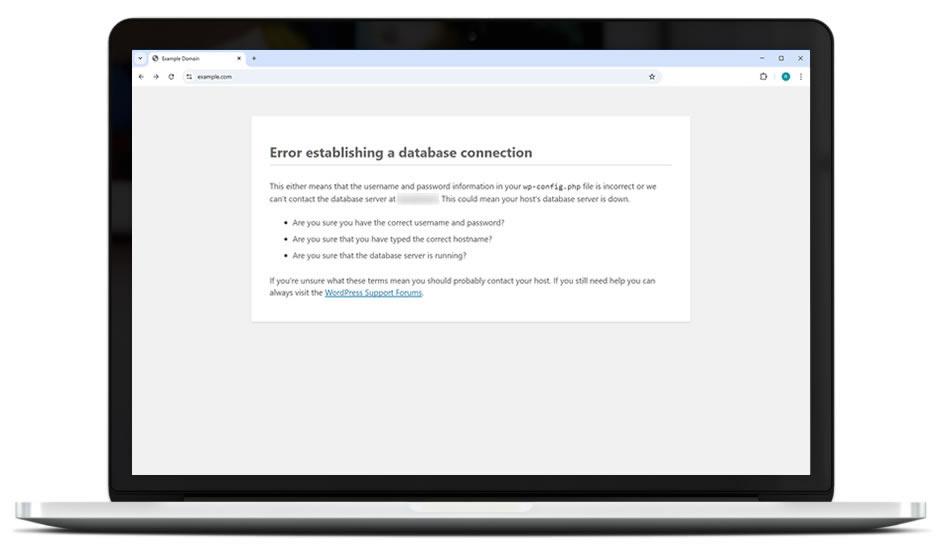
Good managed WordPress hosts like Kinsta automatically handle much of the underlying database optimisation and server configuration for you. If the contents of the WordPress database itself need cleaning or repair, that is more specialised work and may require a developer.
Unless you know exactly what you are doing, database maintenance is one area where DIY can easily do more harm than good.
What about hosting?
Hosting is not really a maintenance task, but good hosting can make WordPress much easier to maintain.
Cheap general-purpose hosting gives you somewhere to run WordPress, but leaves the WordPress management to you. WordPress-specific hosting is configured around how WordPress works, which can reduce database and server problems that you might otherwise have to fix yourself.
Good managed WordPress hosting can also take care of things like server security, malware scanning, caching, backups and performance optimisation. Just as importantly, you have access to support from people who understand WordPress when something goes wrong.
It will not replace the need to update and maintain WordPress itself, but it can remove a large amount of the technical work underneath it. If you are maintaining WordPress yourself, paying more for good hosting is one of the easiest ways to make the job simpler.
Checking links
Broken links and redirect problems are not really part of core WordPress maintenance, but they are still worth checking from time to time.
If a page is deleted or moved without the right redirect, visitors can end up on a 404 error page, and Google can continue trying to crawl URLs that no longer exist. You can also end up with unnecessary 301 or 302 redirects that send users through multiple steps before they reach the correct page.
For a normal small business website, this does not need constant attention. An occasional crawl of the site to look for broken internal links, 404 errors and unnecessary redirects is usually enough.
I would treat this more as general website and SEO housekeeping than WordPress maintenance itself, but it is an easy thing to check while you are reviewing the health of the website.
What to Do If Maintenance Breaks the Website
If something breaks after an update or maintenance change, the first thing to do is stop making more changes. It is very easy to turn one problem into three if you start disabling plugins, changing settings and updating other software without knowing what caused the original issue.
If the problem appeared immediately after a plugin or theme update, that is the obvious place to start. Try clearing the cache, sometimes the website or browser cache can store conflicting files after an update. If that doesn’t work, you may be able to roll that software back to the previous version, or restore the website from a recent backup if the site is badly affected.
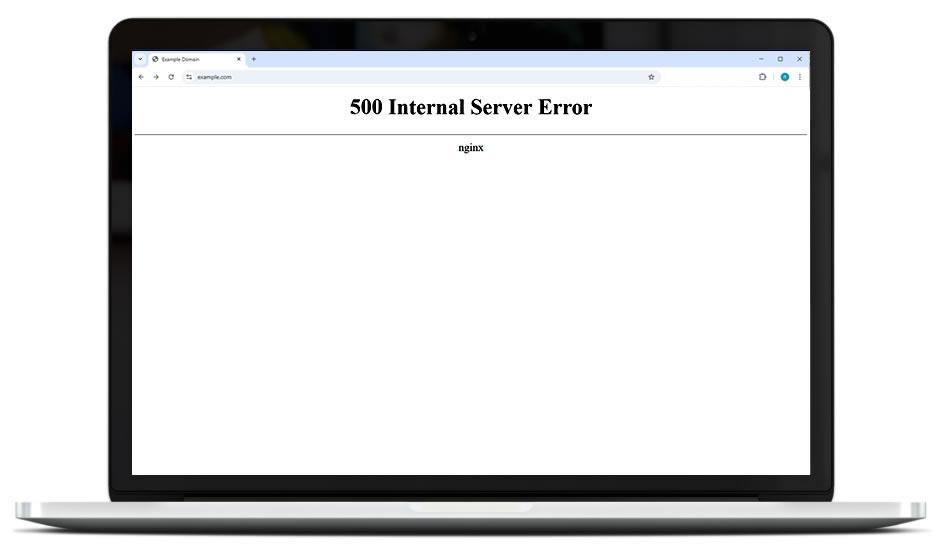
Once the website is working again, you can investigate the cause before attempting the update a second time. Sometimes the issue is a simple plugin conflict. Other times you may need help from your hosting provider or a WordPress developer to work out what has gone wrong.
This is where good backups and monitoring become particularly valuable. The goal is not to guarantee that nothing will ever break. It is to make sure that if something does go wrong, you notice quickly and have a straightforward way to recover.
Need Help Maintaining WordPress? Paramark Can Do It.
WordPress maintenance is not especially complicated when the website is well built, but it does need to be done consistently. Backups, updates, security and monitoring are the core jobs, and good hosting makes all of them easier.
If you are comfortable doing that yourself, there is no reason you cannot maintain a simple business website. The main thing is to have a repeatable process, know how to recover if something goes wrong and recognise when a problem is beyond what you should try to fix yourself.

If you would rather not think about it, Paramark provides managed WordPress hosting and maintenance for Australian businesses. We take care of the ongoing updates, backups, security, monitoring and most repairs, so your website “just works” without you having to lift a finger.